How to Add a CTA to Any Link You Share (2026 Guide)
Step-by-step guide to adding a call-to-action overlay to any URL you share: articles, tools, products, or resources. Works on every website.
Related reading
How to Create Shortlinks from Claude, ChatGPT, and Cursor with Visib's MCP Server
Visib now ships an MCP server. Connect Claude Desktop, Claude Code, ChatGPT, or Cursor and create branded shortlinks with a CTA overlay without ever opening the dashboard.
How to Use the Visib Chrome Extension: Pixel-Perfect Snapshots in 60 Seconds
The Visib Chrome extension captures any page — even ones that block iframes. Install it, click once on any tab, and your CTA overlay works on every site including LinkedIn, Medium, and news sites.
Branded Short Links: The Complete Guide for Marketers (2026)
What are branded short links, why they outperform generic shorteners, and how to set them up with a custom domain. Complete guide with examples.
Every time you share someone else's content, whether it's an article, a tool, a product page, or a resource, you send your audience to another website. They read the content. They close the tab. They never come back to you.
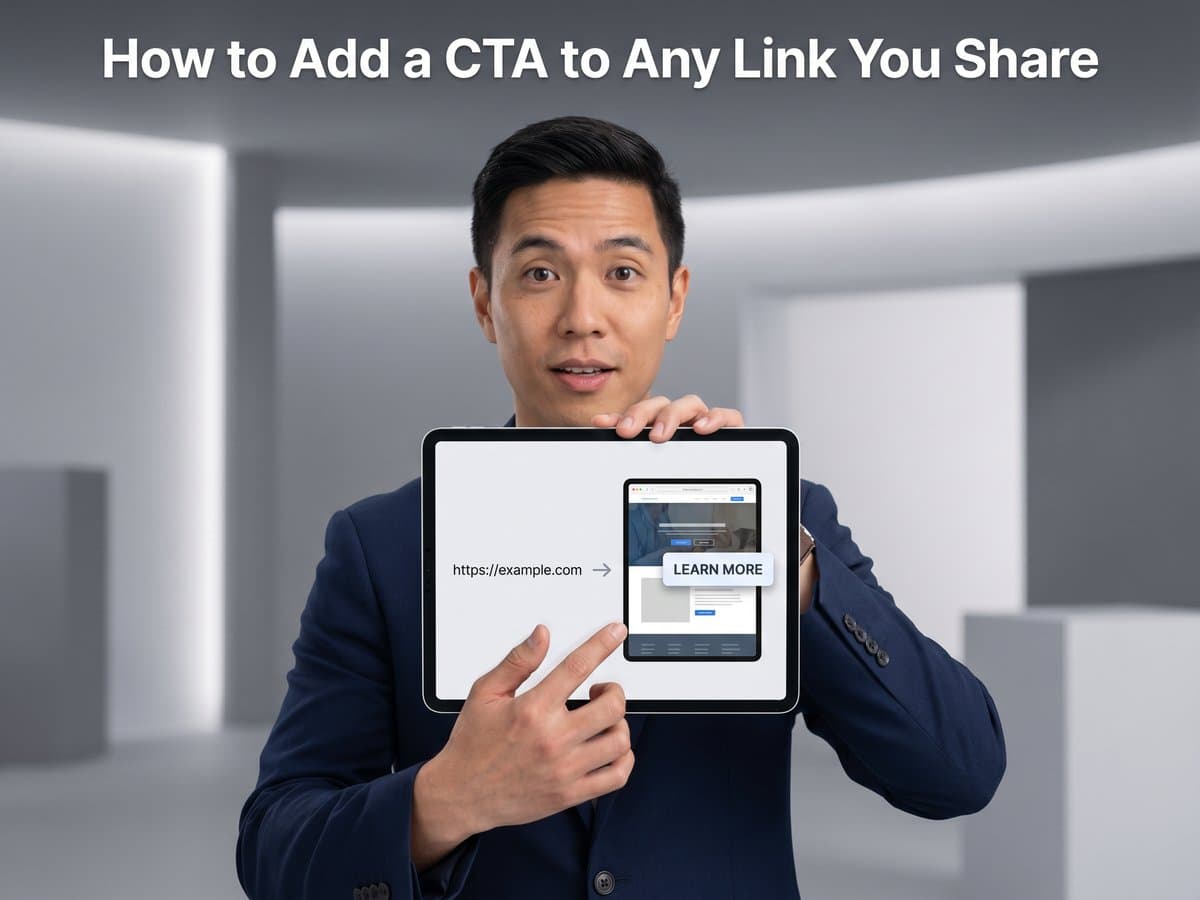
A CTA overlay fixes this. When someone opens your link, they see the original content with a small call-to-action on top: a button to subscribe, a bar linking to your product, a text prompt to book a call. The content is still there. Your brand stays visible the whole time.
This guide covers which tools work, how to set them up, and how to make your CTAs look professional instead of spammy.
What you will be able to do after this guide
Take any URL: a news article, a LinkedIn post, a competitor's product page, a YouTube video, anything. Turn it into a short link with your own call-to-action overlaid on top. Share that link in a newsletter, on social media, or in a Slack message, and every reader sees your CTA alongside the content.
What a CTA overlay actually looks like
Before setting anything up, it helps to understand what your reader experiences. When they click your link, they land on a page that looks like the original website. At the bottom (or top, depending on your settings), a small widget appears:
- Button CTA: a clickable button with your copy: "Subscribe to my newsletter", "Get the free template", "Book a call". Positioned bottom-right or bottom-left.
- Bar CTA: a thin banner across the top or bottom of the page with your message and a link.
- Text CTA: a simple text link, less intrusive, good for professional contexts where a button feels too aggressive.
- Image-link CTA: a small image or banner (like an ad unit or product visual) that links somewhere.
The overlay is small. It does not cover the content. Your reader can still read the full article. It is not a popup. It does not block anything. The best way to think of it: it is a post-it note you stick on content you curate, so your audience does not forget they came from you.
The two approaches: iframes vs. snapshots
There are two technical approaches CTA overlay tools use to show the destination content under your overlay. Understanding the difference matters because one of them fails on roughly 35% of websites.
Iframe-based (most tools)
Most CTA overlay tools like Sniply, Replug, and JotURL load the destination page inside an HTML iframe. An iframe is essentially a window into another website embedded inside your page. When your reader opens your link, they see the CTA tool's page, which contains your overlay plus an iframe showing the destination content.
The problem: many websites block iframe embedding. LinkedIn, Twitter, major news sites like the New York Times, most SaaS product pages, and most e-commerce sites all send a response header that tells the browser to refuse loading inside an iframe. When that happens, the content area goes blank. Your reader sees your CTA floating over an empty frame, or nothing at all.
Snapshot-based (Visib)
Visib takes a different approach. Instead of trying to load the live site in an iframe, the Chrome Extension captures a complete static copy of the page, with all HTML, CSS, images, and fonts embedded in a single file. This snapshot is hosted on Visib's servers (or your custom domain). When your reader opens your link, they see the snapshot with your overlay on top.
Since there is no iframe involved, iframe-blocking headers are irrelevant. The snapshot works on 100% of sites, including LinkedIn articles, paywalled news pages, Amazon listings, and any SaaS product page.
One important trade-off with snapshots
Snapshots are static. If the destination page updates after you create the link, your readers see the version from when you captured it. For most shared content like articles, product pages, and announcements, this is a non-issue. The article you shared last Tuesday has not changed since Tuesday. For live data feeds or pages that update frequently, it is worth noting.
Step-by-step: adding a CTA to any link with Visib
Step 1: Create your account
Go to visib.link and sign up. You can use Google login. Starter is 9 €/mo: 10 vlinks, 1 CTA overlay, 1 custom domain and click analytics. Business (19 €/mo) adds unlimited links and CTAs, snapshots and no Visib badge.
Step 2: Install the Chrome Extension (for snapshots)
If you want your CTAs to work on iframe-blocking sites, install the Visib Chrome Extension. Open the page you want to share in Chrome, click the extension icon, and it captures a pixel-perfect snapshot in a few seconds. The snapshot is automatically uploaded and available in your Visib dashboard.
If the site you want to share is one that allows iframes (a personal blog, a Medium article, a Substack post), you can skip the extension and just paste the URL directly.
Step 3: Set up your CTA template
In your Visib dashboard, go to CTAs and create a template. Choose a type (button, bar, text, image-link), write your copy, set the destination link, and pick your colors. For most use cases, one or two templates is enough. One for newsletter signup, one for your main product.
Keep your CTA copy short and specific. "Subscribe" converts worse than "Get the weekly roundup." "Learn more" converts worse than "See how it works." One clear action, one specific outcome.
Step 4: Create the link
Paste the URL you want to share (or select the captured snapshot). Attach the CTA template you created. Visib generates a short link, either on visib.link or your own custom domain if you have set that up. This is the link you share.
Step 5: Share and track
Share the link anywhere: newsletter, social media, Slack, email. Every click shows up in your analytics: how many clicks, where they came from, how many people clicked your CTA. You get per-link data, so you can see which content drove the most conversions.
Setting up a custom domain
By default, your links look like visib.link/abc123. If you want fully branded links like links.yourbrand.com/slug, you can connect a custom domain in the Visib dashboard.
The setup takes about five minutes: add a CNAME record pointing your domain to Visib's servers, verify it in the dashboard, and SSL is provisioned automatically. All links you create after that use your domain. No Visib branding in the URL, no third-party domain in your links.
A custom domain is included on Starter. Business connects up to 5 domains, which is useful if you manage multiple brands or client accounts.
CTA copy that actually works
The technical setup is straightforward. The copy is where most people underinvest. A few principles that consistently work:
- Match the CTA to the content. If you are sharing a data report on email marketing, your CTA should not be "Check out our pricing." It should be "Get our email marketing templates" or "See our benchmarks." Relevance is everything.
- One action only. Do not put two buttons or two links in one CTA. One action, one destination. Every option you add cuts your conversion rate.
- Specific beats generic. "Join 2,400 marketers who get the weekly brief" converts better than "Subscribe." Give the reader a reason.
- Low friction asks first. If your reader is new to you, asking them to book a sales call is too much. Ask for an email first. Save the bigger ask for readers who have clicked your links multiple times.
- Test the position. Bottom-right works well for most content. Top bar works well when you share content in a professional context where a bottom overlay might feel too "ad-like."
Common mistakes to avoid
- Using the same CTA for everything. If you share articles about SEO and articles about email marketing to the same audience, a generic "subscribe" button does less work than a content-matched one. Create multiple CTA templates.
- Not checking if the link works. After creating a link, open it in an incognito tab and confirm the content loads and your CTA appears. If you are using iframes and the site blocks them, you will see a blank content area, which means you need to use a snapshot instead.
- Sharing links without a destination for the CTA. Your CTA button should go somewhere specific: a landing page, a signup form, a product page. Not your homepage. The reader clicked a link about email marketing. Send them to your email marketing resource, not your generic home.
- Ignoring the analytics. Visib shows you click counts and CTA conversion rates per link. Check these after a week. The links with the highest conversion rates are the content types your audience engages with most. Share more of that.
Who this is most useful for
CTA overlays on shared links are particularly valuable for:
- Newsletter writers who curate content from around the web and share it with their subscriber base. Every link in your roundup now points back to you.
- Social media managers who share industry news, research, and resources. Every link on LinkedIn, Twitter, or Instagram Stories now drives traffic back to your site.
- Content marketers building authority by sharing expert resources. Show your audience you read widely, and bring them back to your own content at the same time.
- Agencies managing content distribution for clients. Every piece of third-party content you share on behalf of a client now includes the client's CTA.
- Founders who share competitor content, industry reports, and interesting resources with their community. Keep the conversation happening on your terms.
